6 Free AI Tools Every Office Worker Needs in 2026: Cut Overtime in Half
Your workday keeps getting longer? 2026’s AI tools might help
Taiwanese office workers put in an average of 4.5 hours of overtime per week. Most people blame the workload, but in practice a lot of that time disappears into “repetitive work”: writing emails, organizing data, taking meeting minutes, hunting down numbers. None of it is technically difficult — it just eats hours.
2024–2026 has been the turning point where generative AI moved from “toy” to “everyday tool.” Free-tier models have caught up to paid versions from one or two years ago, and the market has split enough that each tool has found its sweet spot. We tested the 2026 releases of 6 free AI tools to see where they actually save office workers time, and which traps are worth knowing about.
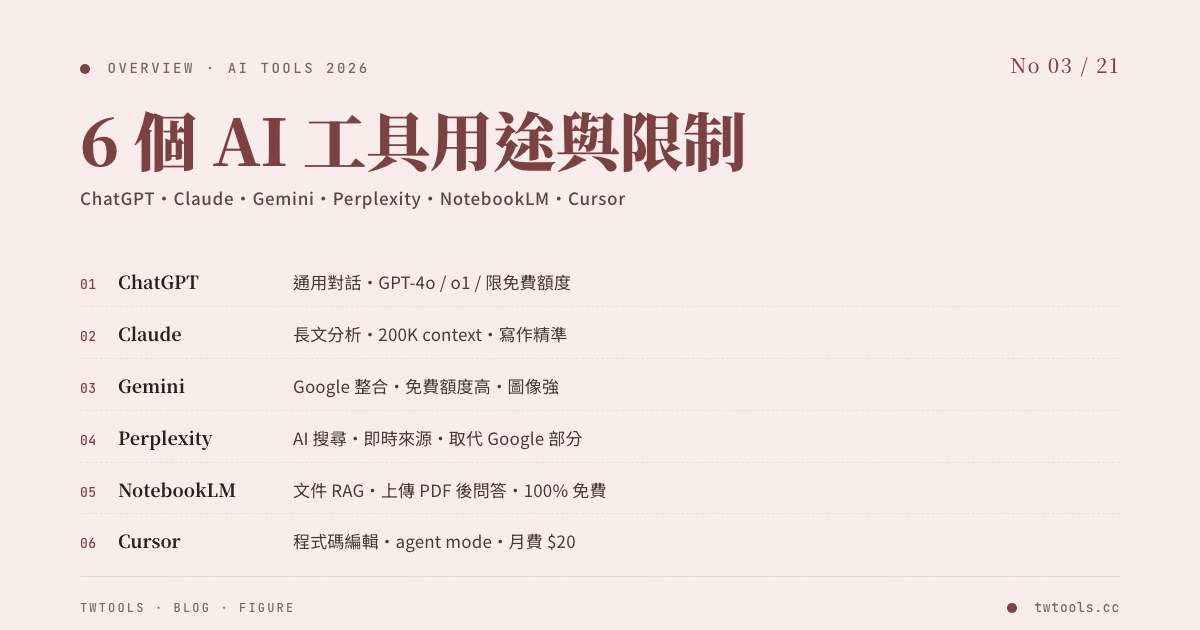
1. ChatGPT Free (GPT-5.3): everyday copywriting and email drafts
Best for: drafting emails, brainstorming project names, drafting proposal copy, summarizing key points, short translations
OpenAI moved the free-tier default model up to GPT-5.3 in 2026. Free accounts get up to 10 messages every 5 hours, then auto-downgrade to the mini version. That’s more than enough for everyday needs like “write a business email” or “turn these meeting notes into 5 bullet points.”
- Example 1: a business email — agonizing over wording for 25 minutes vs. AI first draft + you tweak 3 sentences ≈ 5 minutes
- Example 2: project pitch outline — coming up with 5 angles solo in 45 minutes vs. 10-minute dialogue with AI to land on 3 directions, then you pick one and refine
- Watch out: GPT-5.3 still “confidently makes things up.” Anything specific (financial figures, news dates, people’s names) needs verification. The free tier doesn’t include Deep Research, advanced Voice Mode, or GPT-5.5 Thinking.
2. Claude Sonnet 4.6 Free: long-form writing and nuanced thinking
Best for: long-form editing, reading technical documents, complex logical reasoning, nuanced Chinese writing
Anthropic’s Claude is especially strong on nuanced Chinese writing, and Sonnet 4.6 is the strongest mid-tier model of 2026. The free tier gives you about 30 messages per day (queues form at peak hours). Projects and Extended Thinking aren’t included, but it handles the vast majority of copywriting needs.
- Example 1: long-form proofreading — a 5,000-word proposal, sentence-by-sentence by hand takes 1.5 hours vs. Claude flagging logic gaps and filler with you only reviewing the marks ≈ 25 minutes
- Example 2: decoding an Excel formula — can’t follow your colleague’s nested IFERROR + INDEX + MATCH? Claude breaks it down piece by piece and offers a more readable alternative
- Watch out: free-tier conversations have a context cap; for very large files (100+ page PDFs), split before feeding. Too many tabs open at once will hit the rate limit.
⚠️ Privacy warning that applies to both: conversations on free-tier ChatGPT and Claude may be used for model training (you can disable this in settings). Don’t paste customer lists, employee salaries, or contract terms into free tiers. If your company has an enterprise license, route those through the enterprise version.
3. Perplexity Free: real-time news and industry intel lookup
Best for: looking up the latest industry developments, competitor moves, and market data with proper citations
Perplexity positions itself as an “AI search engine” — it connects to news RSS feeds and current web pages, so it can pull up Q2 2026 market data well past ChatGPT’s knowledge cutoff. Especially useful for marketing, sales, and analyst roles.
- Example: “2026 Taiwan e-commerce platform tax rules for individual sellers” → a summary plus 6 source links in seconds, vs. paging through 5 pages of Google results yourself.
- 2026 free-tier limits: basic search is unlimited; Pro Search (deep research mode) is capped at 5 per day and 3 file uploads per day. For heavy research, the Pro tier (US$20/month) is worth considering.
- Watch out: it occasionally confuses dates between similar news items, so double-check each citation link. Proper nouns (especially Chinese names and place names) still get misidentified at times.
4. Canva Magic Studio: presentations, posters, social images on demand
Best for: quick presentations, marketing posters, social media graphics, brand asset extensions
Between 2024 and 2026, Canva folded all its AI features into Magic Studio — including Magic Design (generate a full deck from a single prompt), Magic Switch (turn a deck into a PDF, video, or social graphic), Magic Write (copy), Magic Eraser (background removal), and others. Free accounts can use most features but have monthly generation caps.
- Example: 90 minutes to build a 12-slide deck by hand (template selection, color tweaks, image hunting, layout) vs. Magic Design output + you fine-tune ≈ 25 minutes
- Watch out: free-tier templates and color palettes are limited, and certain “Pro” elements bounce you to a paywall when you click them. For important clients or external launches, plan to polish Magic Studio output in Photoshop or Affinity before shipping.
5. Gemini in Google Sheets / Excel Copilot: formulas, pivots, data wrangling
Best for: writing VLOOKUP / INDEX-MATCH, working out data logic, generating pivot analyses, structuring messy data
Google rolled out Gemini to free Gmail accounts in Q4 2024. Gemini in Sheets accepts plain-language descriptions of what you want and generates formulas or suggests pivots. Microsoft launched Copilot in Excel in the same window (the personal version requires a Microsoft 365 subscription; the free tier is more limited).
- Example 1: “categorize these 2,000 customer rows by region and calculate revenue per region” — 2 hours by hand vs. AI writes the formula and you review ≈ 15 minutes
- Example 2: “find products whose sales grew month over month” — AI hands you a conditional formatting rule plus a sort formula directly
- Watch out: AI-generated formulas sometimes have shaky logic; complex multi-table joins still need a human review. For sensitive data (employee salaries, customer information), evaluate the privacy risk before processing on a free Google account.
6. Notta for Chinese transcription: cut meeting-note time in half
Best for: meeting recording → Chinese transcript → AI summary and action items
⚠️ An important correction: Otter.ai, often recommended in the past, doesn’t support Chinese. It recognizes English with a Chinese accent, but Chinese speech comes out as garbled text. For Taiwanese users, the right options are:
- Notta (high-accuracy Chinese transcription, maintained by a Taiwanese team)
- Whisper (OpenAI’s open source) + self-hosted (free but needs technical setup)
- Tinrec, Miaoting, iFlytek (the best-feeling local tools for Chinese)
- Google Meet’s built-in transcription (Chinese support added in 2024, available on free Workspace accounts)
A typical workflow (using Notta as the example):
- Example: manually noting a 1-hour meeting plus 3 hours of after-the-fact cleanup vs. Notta auto-transcription + AI summary ≈ 12 minutes
- Watch out: Chinese transcripts still miss proper nouns (company names, people’s names, product names), so do a quick proofreading pass. Before recording, tell participants and get their consent — that’s the right thing to do and it’s required under Taiwan’s Personal Data Protection Act.
How do you use AI without falling into traps?
- Always do a pass yourself: AI is a first-draft assistant, not the final draft. Review every email, plan, and document before it leaves your hands.
- Verify data: AI invents stories and numbers. Anything specific that touches customers, financial statements, or regulations needs source verification.
- Privacy and confidentiality: never drop company confidential data, employee personal information, or customer information into free AI tools. For sensitive content, use enterprise versions (with training disabled), run a local LLM, or anonymize the data first.
- Pick the right scenarios: AI is most useful for “first-draft generation,” “information lookup,” and “data organization.” It’s least useful for “original thinking,” “deep industry expertise,” and “relationship building.”
- You don’t need to learn every tool at once: start with the task you repeat most often each week, pair it with one matching tool, use it for 1–2 weeks, then decide whether it’s worth keeping.
2026 workflow combinations by role
| Your role | Tool combo |
|---|---|
| Sales / Consulting | Perplexity (quick industry intel) + ChatGPT (email drafts) + Notta (client meeting recording) |
| Marketing | Canva Magic Studio (visuals) + Claude (long-form) + Gemini in Sheets (data) |
| Engineering | Claude (code, debug) + ChatGPT (short queries) + Perplexity (tech news) |
| HR / Admin | ChatGPT (letters, forms) + Notta (interview transcripts) + Canva (training materials) |
| Founder / Solo operator | Use all of them, but stay on free tiers — upgrade one to paid only when you have heavy need |
A 7-day onboarding plan for first-time AI users
If you haven’t started using AI yet, jumping straight into video tutorials usually creates information overload. Try this sequence instead:
- Days 1–2: sign up for a free ChatGPT account and try small tasks with specific input, like “translate this English email into Chinese” or “turn these 5 bullets into a 200-word meeting summary”
- Days 3–4: try Perplexity. Ask about “recent regulatory changes” or “a competitor’s new move” in your field, and watch whether the cited sources are reliable
- Days 5–6: pick a meeting recording (with participants’ consent), run it through Notta for a transcript and AI summary, and compare it to your usual manual notes
- Day 7: review the week — what work did AI actually save time on? Keep using the one or two things that worked. Park the rest for later.
⚠️ The point of the plan isn’t to learn every feature — it’s to find the 1–2 uses that actually fit your workflow. Most AI experiments fail not because the tools are bad, but because people try to learn too much at once.
5 common AI pitfalls (so you don’t repeat them)
- Pasting a customer list into ChatGPT for sorting: free-tier content can be used for training — that’s effectively leaking customer data. Fix: in Excel, swap real customer names for “Company A,” “Company B” first; let the AI work; swap names back when you’re done.
- Copying an AI-written market report straight into a deck: AI hallucinates market data and citations, and business decisions based on that data can be wrong. Fix: treat AI output as a first draft, verify every source line by line, and flag any figure you can’t confirm.
- Forwarding an AI meeting summary directly to your manager: AI tends to miss the nuances that matter (sarcasm, hedged remarks, unspoken commitments). Fix: treat the AI summary as a “fill-in-the-blanks” draft and add the meeting’s actual tone and implicit decisions yourself.
- Sending an AI translation straight to a client: Chinese-to-English translation often comes out too literal or with culturally insensitive word choices. Fix: give the AI context about the target audience (US, Japan, Europe), and after translation, ask a colleague who speaks the language to look it over.
- Pasting AI-written code directly into production: AI routinely uses outdated APIs, forgets error handling, and references packages that don’t exist. Fix: run it locally, write unit tests, and review the git diff line by line.
AI tools aren’t here to replace you — they’re here to free you from mechanical work so you have time for what actually matters. Starting next week, pick a tool and apply it to the task you repeat most often. A month from now, look back at the hours it saved.